YouTube Integration
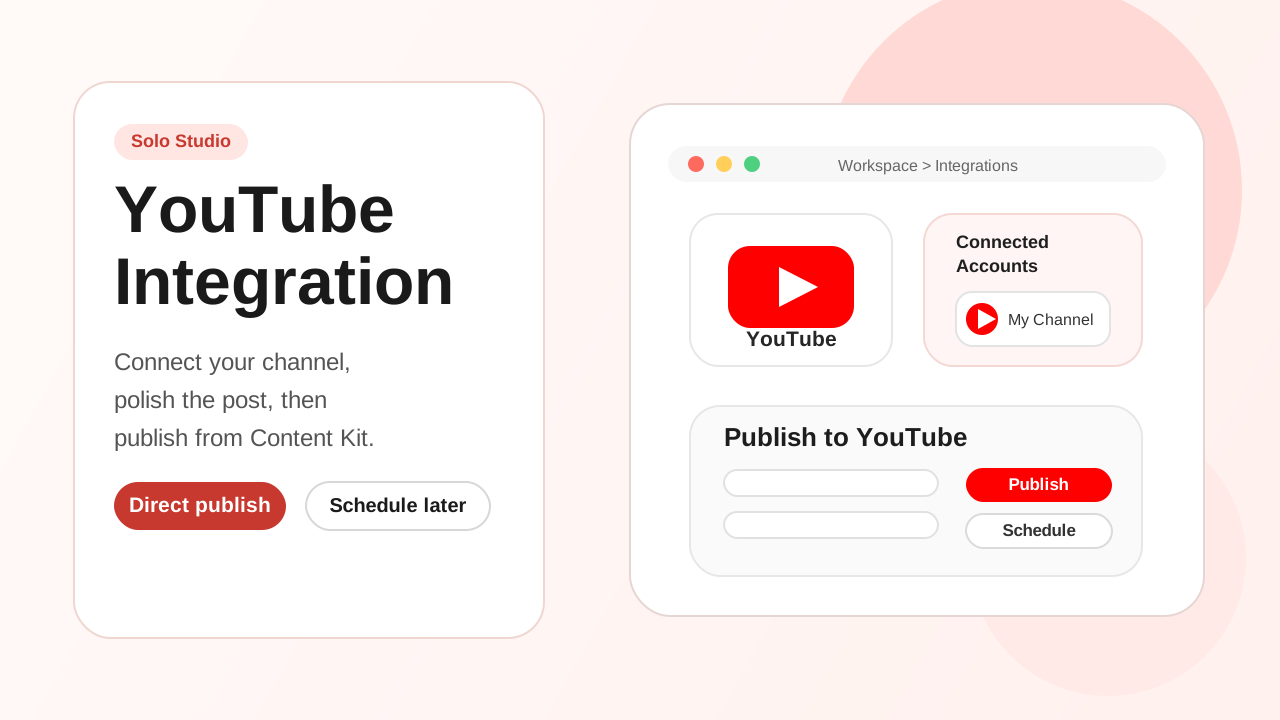
Connect YouTube to Zync and publish or schedule videos directly from your Content Kit.
Lesson notes
Use this guide to connect YouTube to Zync and publish or schedule videos from Content Kit.
Before You Start
- Estimated time: 3-5 minutes for setup.
- Use the Google account that owns the YouTube channel you want to publish from.
- Keep your Google login available for the consent flow.
- Direct publish can be disabled on free or trial-limited workspaces. If you see
Upgrade to Publish Directly to YouTube, upgrade your plan first. - If Zync connects successfully but shows no channels, create or verify your YouTube channel and reconnect.
Connect YouTube (One-Time Setup)
- In Zync, go to
Workspace > Integrations. - In
YouTube Configuration, select the YouTube card. - In the consent modal, review the upload permissions and select
Connect to YouTube. - Sign in to Google and approve access for Zync.
- After redirecting back to Zync, confirm your channel appears under
Connected Accounts.
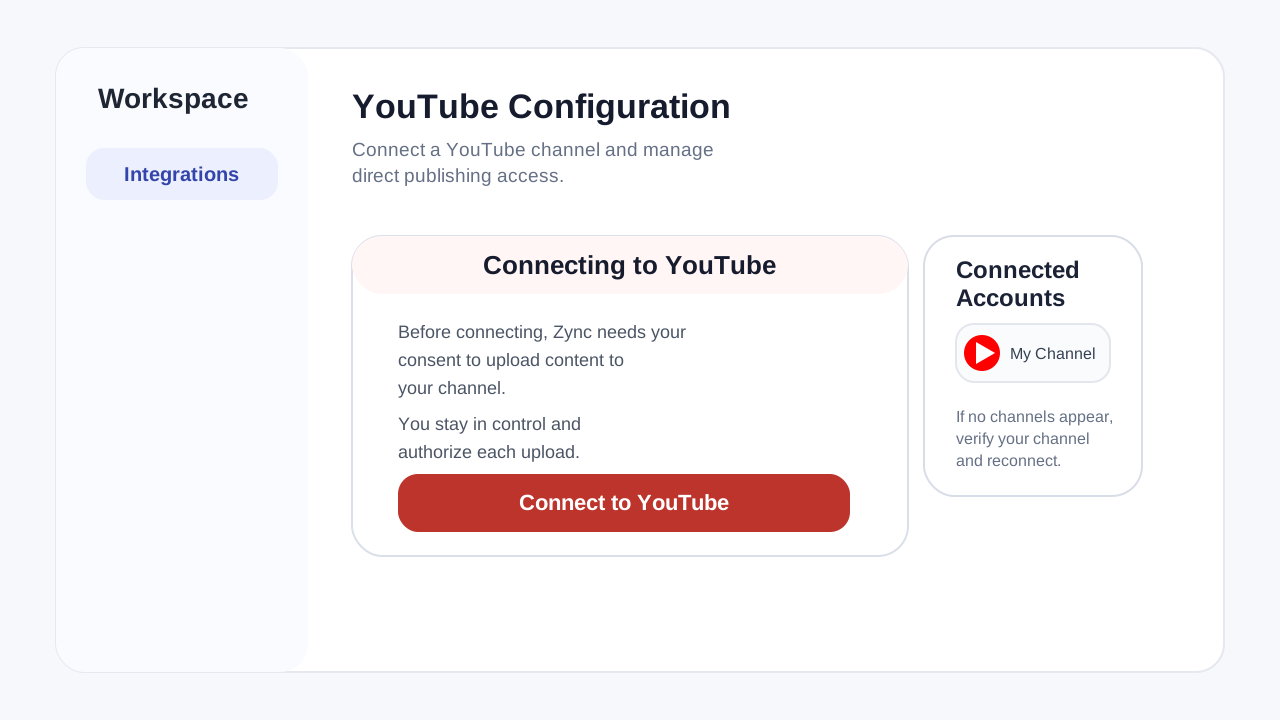 Connect YouTube in
 Workspace > Integrations, then approve access in the consent modal.
Success check: Your channel name appears in
Connected AccountsinsideYouTube Configuration.
Publish From Content Kit (Repeatable)
- Open the episode's
Content Kit. - Select
Publish to YouTube. - Review
Post titleandDescription, then save edits if needed. - Choose a
Privacy Status:Public,Private, orUnlisted. - Select
Publishto post immediately. - To publish later, open the arrow next to
Publish, choose a time, and confirm the schedule. - After publishing, use the
Published Videolink to verify the upload on YouTube.
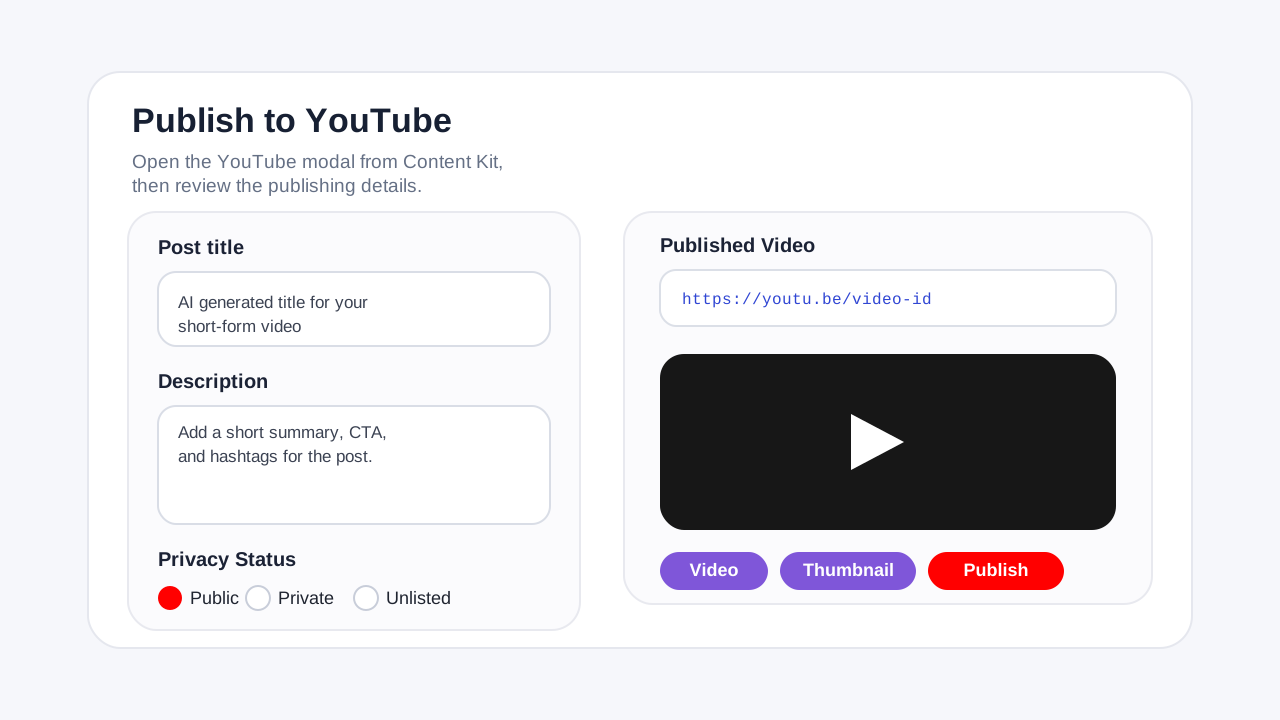 Review title, description, privacy, and publish controls before sending a video to YouTube.
Success check: The publish finishes without errors and a YouTube link appears in
Published Video.
If Publishing Fails
- Reconnect YouTube in
Workspace > Integrationsand try again. - Confirm the
Post titleis not empty and stays within the 100-character limit. - If you see
Please reconnect to YouTube, refresh the integration before retrying. - If you still do not see a channel in
Connected Accounts, verify the YouTube channel in Google and reconnect.
Disconnect or Switch
- Go to
Workspace > Integrations. - In
YouTube Configuration, use the toggle on the connected account and confirmRemove. - Select the YouTube card again to connect a different Google or YouTube account.