
Instagram Integration
Connect Instagram to Zync and publish Reels directly from your Content Kit.
Lesson notes
Use this guide to connect Instagram to Zync and publish from Content Kit.
Before You Start
- Estimated time: 3-5 minutes for setup.
- You need an Instagram Professional account.
- The Instagram account must be linked to a Facebook Page you manage.
- Keep your Facebook login available for permission approval.
- You need to have
Soloplan active (or trial)
Connect Instagram (One-Time Setup)
- In Zync, go to
Workspace > Integrations. - In the Instagram section, select
Connect Instagram. - Sign in to Facebook and approve requested permissions.
- After returning to Zync, select the Facebook Page linked to your Instagram account, then choose
Connect. - Confirm your Instagram handle appears in the Instagram section.
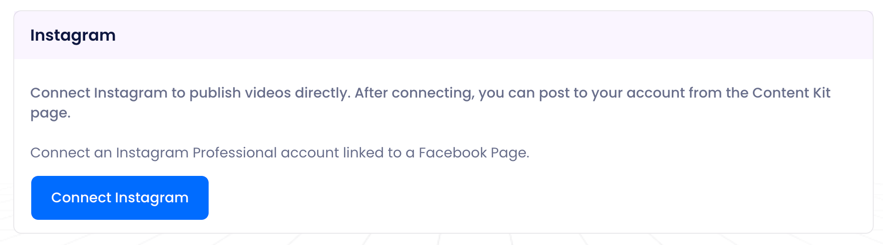 Connect Instagram in
 Workspace > Integrations.
Success check: Your Instagram handle is visible in
Workspace > Integrations.
Publish From Content Kit (Repeatable)
- Open the episode's
Content Kit. - Open the Instagram/Reels item and select
Publish. - Review the description and make edits as needed.
- Wait for publish status to complete.
- If a link appears, select
View Postto verify the Reel.
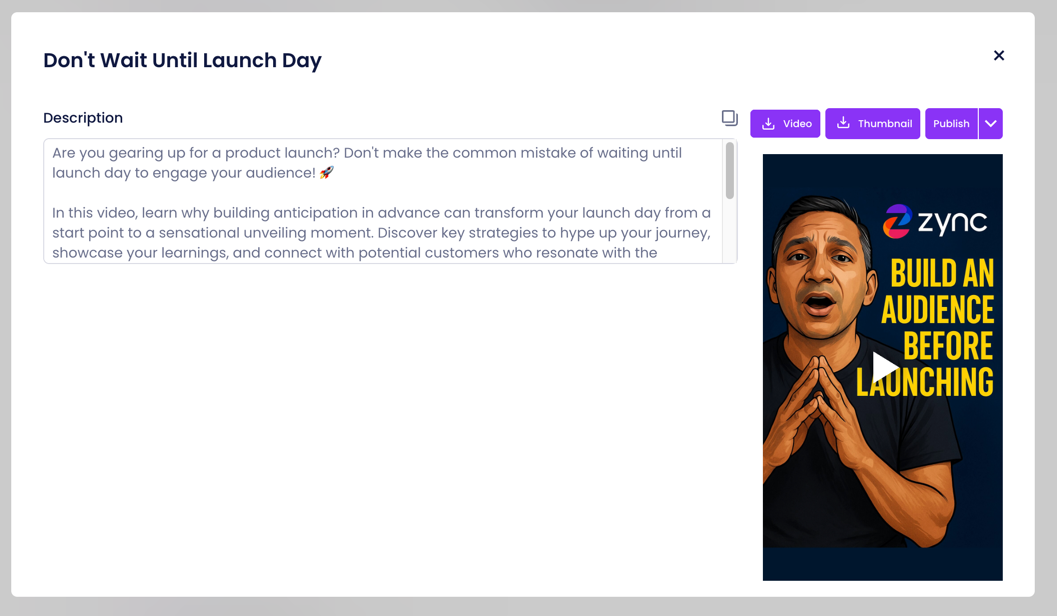 Review and confirm the Instagram publish modal before posting.
Success check: Publish status completes and the Reel appears on Instagram.
If Publishing Fails
- If you see
Video too long for Instagram Reels (max 90s), use a shorter clip from Content Kit. - Confirm the connected Instagram account is still active in
Workspace > Integrations.
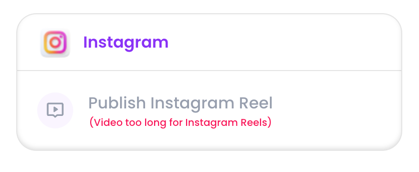 Example of the Reels length limit error.
Disconnect or Switch
- Go to
Workspace > Integrations. - In the Instagram section, select
Disconnectto remove the current account. - Select
Connect Instagramto link a different account.
 Use
Use Disconnect to remove the current Instagram account.