
All guidesUnable to Detect Camera / Microphone
Unable to Detect Camera / Microphone
Troubleshoot missing camera or microphone detection in Zync.
Our app is unable to detect cameras or microphones on your computer. Here are a few troubleshooting tips.
- If you are using an external webcam or mic, double-check that they are plugged into your computer.
- Make sure that you grant the app permission to access your camera and mic when prompted.
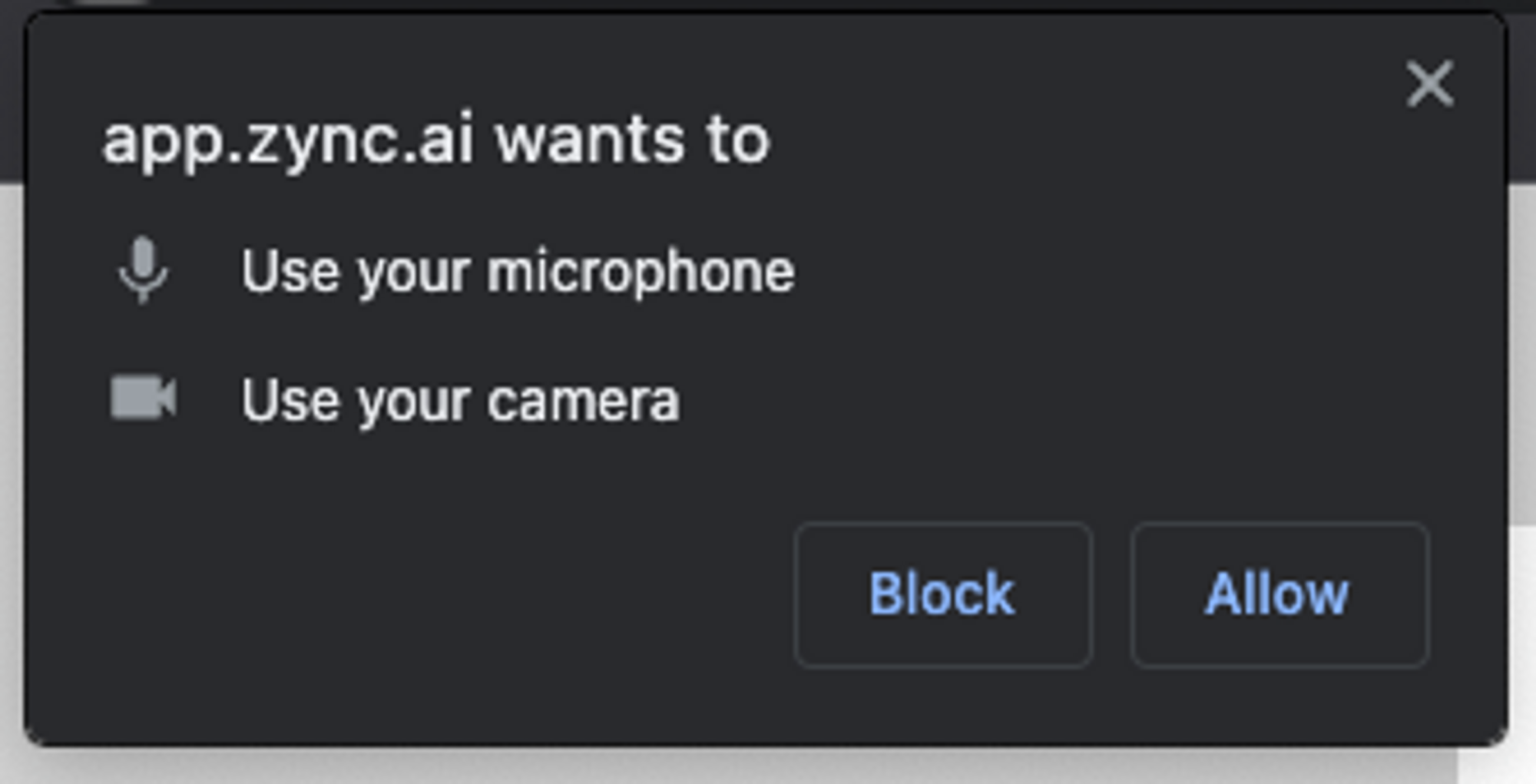
- Make sure that you grant your browser permission to access your camera and microphone. The instructions vary based on your operating system. For more details, review the tips below.
Granting access to your camera and microphone
- Make sure that another app (e.g. Zoom or Google Meet) is not already using your camera or mic.
- Make sure that your antivirus is not blocking access to your camera or mic.
- Restart your browser. Note: Mac users, please terminate the entire application instead of just closing the current window or tab. This is done using the Cmd+Q shortcut.
- If none of this works and you can verify that other browser-based applications like Google Meet can access your camera and mic, please reach out to us at support@zync.ai.